How to Adjust Pan in Pro Tools in 5 Easy Steps
If you’re working on a mix in Pro Tools, adjusting the pan can dramatically improve how each instrument sits in the stereo field. Pan control in Pro Tools is essential for creating space and balance in your mix. You’ll want to start by finding the pan control on your track, then carefully move it left or right to position sounds where they belong.
But getting it right takes more than just shifting knobs—it requires a bit of critical listening and subtle tweaks. Let’s break down how you can do this effectively in just a few steps.
Locate the Pan Control on Your Track
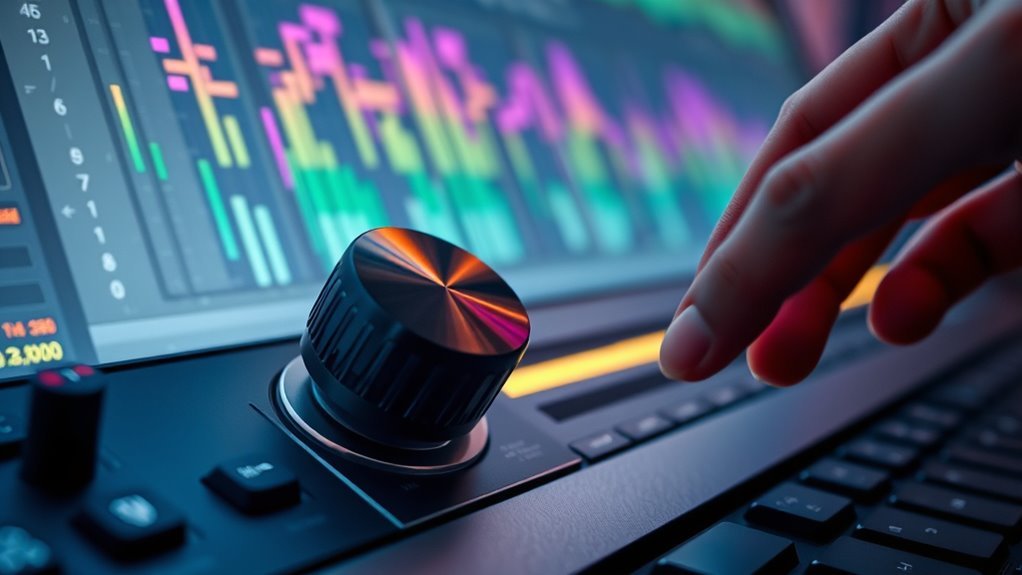
Where can you find the pan control on your Pro Tools track? In Pro Tools, the pan control is typically represented by a circular pan knob located in the mixer view. You’ll spot it at the top of each track’s channel strip, right alongside volume and other essential controls.
This pan knob lets you adjust your audio’s position within the stereo field, balancing sound between the left and right speakers.
Besides the mixer view, you can access the pan control in the track’s Edit View by clicking the track header or using the Inspector window.
Adjust the Pan Knob or Slider Left or Right
Now that you’ve located the pan control on your Pro Tools track, you can start adjusting it to position your audio within the stereo field.
To adjust pan, simply click and drag the pan knob or slider left or right on the track settings.
Moving the pan knob toward the left shifts the sound’s placement in the stereo image to the left speaker, while dragging it right moves it toward the right speaker.
Adjusting the pan knob left or right places sound between the left and right stereo speakers.
For finer control, hold Shift while dragging or enter exact numerical values in the pan parameter.
This precise adjustment guarantees your mix elements sit exactly where you want in the stereo image.
Using the pan control effectively in Pro Tools helps create a balanced, immersive soundstage in your mix.
Listen and Evaluate the Spatial Positioning
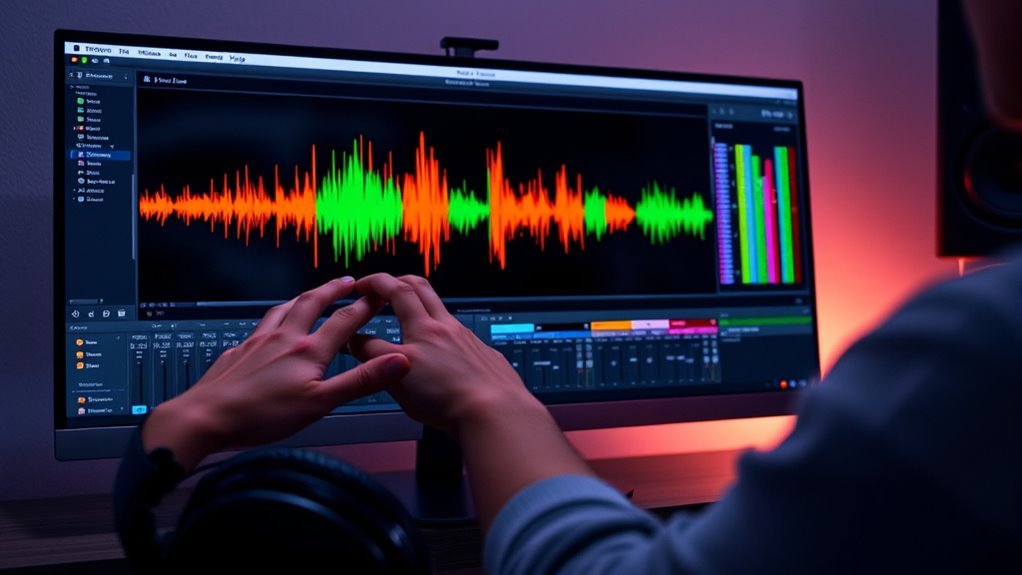
How do you know if your panning choices really work? You need to listen critically and evaluate the spatial positioning within your stereo image. Use headphone monitoring or quality speakers to perform a thorough panning assessment.
Check if each element enhances mix clarity and contributes to a balanced soundstage, avoiding clutter or masking. Pay attention to depth and movement cues to ensure a natural feel.
| Listening Tool | Focus Area | What to Notice |
|---|---|---|
| Headphones | Stereo Image | Subtle shifts, clarity |
| Studio Monitors | Soundstage | Depth, separation |
| Different Environments | Mix Clarity | Consistency, balance |
Regularly compare mixes across setups to verify your spatial positioning holds up well.
Fine-Tune the Pan Settings for Balance
Although setting initial pan positions provides a solid foundation, you’ll want to fine-tune the pan settings in Pro Tools to achieve a perfectly balanced mix. Use the pan knob to manually adjust each track’s stereo position, shifting sounds left or right for clarity.
For more precise control, enable automation and select “Pan” in the track view menu. Double-click the pan automation line to add pan points, then drag them to adjust specific moments within your song. This lets you create smooth stereo movements and dynamic spatial effects.
Keep in mind the role of each instrument and balance their pan settings to build a cohesive stereo field. By carefully refining pan automation, you ensure every element sits harmoniously in the mix without overcrowding.
Playback and Confirm the Overall Mix Clarity
After fine-tuning your pan settings, it’s important to playback the mix in various listening environments to confirm overall clarity and balance. Test your mix on different speaker systems to guarantee the pan adjustments translate well across setups.
Use solo and mute functions to isolate elements and check their position in the stereo field. Regularly toggle between mono and stereo playback to detect any phase issues that might compromise mix clarity.
Adjust panning gradually while listening closely to avoid masking and maintain even sound distribution. Combine your listening with visual meters and waveform displays to verify separation and clarity.
This thorough playback process helps you achieve a well-balanced mix that sounds clear and cohesive in any listening environment.
Frequently Asked Questions
How to Change Pan in Pro Tools?
You just grab the pan knob on your track’s channel strip and drag it left or right to shift sound placement.
Double-click it for precise values or automate panning by enabling pan automation on your track.
How to Pan in 5.1 Pro Tools?
Back in the days of vinyl, you’d spin a record; now, you just select “Surround” mode on your track, then use the Surround Panner to position sounds across 5.1 channels.
Adjust each channel for perfect spatial balance. This allows you to create immersive mixes that take full advantage of the surround sound setup. The Surround Panner simplifies the process, making precise placement intuitive and efficient.
What Is Ctrl Shift N in Pro Tools?
Ctrl + Shift + N in Pro Tools opens the “New Track” dialog, letting you quickly create audio, MIDI, instrument, or aux tracks.
It speeds up workflow, and you can customize this shortcut in preferences.
How to Pan in Pro Tools Intro?
You just grab the pan knob like it’s a tiny steering wheel and twist it left or right to send your sound on a wild stereo adventure.
Don’t forget to automate if you want it to dance across the mix!
Conclusion
Now that you know how to adjust pan in Pro Tools, you’re ready to place every sound perfectly in the stereo field. With just a few clicks, you can create a mix so clear and spacious it feels like the instruments are playing right inside your head!
Remember to listen carefully, fine-tune your settings, and trust your ears. Mastering pan will take your mixes from flat to absolutely dazzling in no time. By adjusting pan in Pro Tools effectively, you enhance the clarity and depth of your audio projects, making your mixes stand out with professional quality.